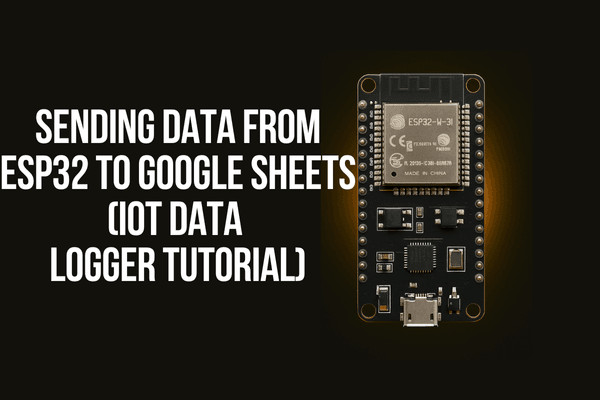
Sending Data from ESP32 to Google Sheets (IoT Data Logger Tutorial)
## Introduction Logging sensor data to the cloud is one of the most common uses of ESP32. In this tutorial, you'll learn how to send data from an ESP32 to a Google Sheet in real-time using Google Apps Script and a simple HTTP POST request. ## What You’ll Need - ESP32 Board - Arduino IDE - Wi-Fi Netw
#Introduction
Logging sensor data to the cloud is one of the most common uses of ESP32. In this tutorial, you'll learn how to send data from an ESP32 to a Google Sheet in real-time using Google Apps Script and a simple HTTP POST request.
#What You’ll Need
- ESP32 Board
- Arduino IDE
- Wi-Fi Network
- Google Account (for Sheets & Script)
- (Optional) Sensor (e.g., DHT11, DHT22, LDR)
#Step 1: Create Your Google Sheet
- Go to Google Sheets
- Create a new sheet and name it, e.g.,
ESP32_Data_Logger - In Row 1, add headers like:
Timestamp,Temperature,Humidity

#Step 2: Create a Google Apps Script
In your Google Sheet, click Extensions > Apps Script


Replace the default code with this script:
function doPost(e) { var sheet = SpreadsheetApp.getActiveSpreadsheet().getActiveSheet(); var data = JSON.parse(e.postData.contents); sheet.appendRow([new Date(), data.temp, data.hum]); return ContentService.createTextOutput("Success"); }
Save the script and name it ESP32 Logger

Click Deploy > New deployment

Select "Web App", name it, and set:

- Execute as: Me
- Who has access: Anyone
Click Deploy and Authorize the permissions

Copy the Web App URL (you'll need it for ESP32)

#Step 3: ESP32 Arduino Code
#1. Replace WiFi Credentials
Find these two lines in your code:
const char* ssid = "Your_WiFi_Name"; const char* password = "Your_WiFi_Password";
Replace "Your_WiFi_Name" and "Your_WiFi_Password" with your actual WiFi network name and password.
#2. Replace Google Script URL
Find this line:
const char* scriptURL = "https://script.google.com/macros/s/YOUR\_SCRIPT\_ID/exec";
Replace the whole URL with your real Web App URL from Google Apps Script:
#include <WiFi.h> #include <HTTPClient.h>
// Replace with your WiFi and Web App details const char* ssid = "Your_WiFi_Name"; const char* password = "Your_WiFi_Password"; const char* scriptURL = "https://script.google.com/macros/s/YOUR\_SCRIPT\_ID/exec";
void setup() { Serial.begin(115200); WiFi.begin(ssid, password); while (WiFi.status() != WL_CONNECTED) { delay(1000); Serial.println("Connecting..."); } Serial.println("Connected to WiFi"); }
void loop() { if (WiFi.status() == WL_CONNECTED) { HTTPClient http;
[object Promise]} else { Serial.println("WiFi Disconnected"); }
delay(10000); // Send data every 10 seconds }
#Expected Output
- Your ESP32 will connect to WiFi.
- Every 10 seconds, it sends temperature & humidity data.
- Google Sheet automatically updates with a timestamp.
#Security Tips
- Use HTTPS in the script URL.
- Restrict access using Google Apps Script token/authentication (for advanced users).
- Avoid hardcoding Wi-Fi passwords in production.
#Why Use Google Sheets?
- Free & cloud-based
- Easy to visualize and export data
- Accessible from any device
#Wrap Up
You've successfully built a basic IoT data logger using ESP32 and Google Sheets. You can now expand this by:
- Logging real sensor data (DHT11, MQ2, etc.)
- Adding charts in Sheets
- Automating email alerts when thresholds are crossed.